

AiRP
BrowseMy chats
Sign inSign up
Sign inSign up
AiRPAboutFAQHelpBlogAs seen onRulesTermsPrivacyCopyright
All help
Learn
  • What is AI roleplay?
  • Uncensored and abliterated models
  • What works differently on AiRP
Play
  • Start playing a story
  • Chats
  • Memory
  • Collection and trophies
  • Stars
  • Models, credits, and context
Account
  • Profile
  • Credits
Create
  • Writing your own story
  • Story page
  • Intro
  • Plot
  • Cast
  • Tidbits
  • Locations
  • Hooks
  • Story headers
  • Rules
  • Series
Import and export
  • Importing a story
  • Importing from SillyTavern
  • Importing from Saucepan
  • Importing from LoreWeaver
  • Importing from FictionLab
  • Importing from Character.AI
  • Importing from Chai
  • Exporting your stories
Questions
  • Frequently asked questions
Browse / Help / Importing from FictionLab

Help · Import and export

Importing from FictionLab

Download a save of a FictionLab scenario, convert it for AiRP, and import it.

Import and export guide1 min read

Open Import

Download a save from FictionLab

FictionLab's scenario editor keeps saves of your scenario, and you can download one as a file.

  1. On FictionLab, open your scenario in edit mode.
  2. Choose Saves, near the top right of the editor.
  3. Choose Save now, then download the save.
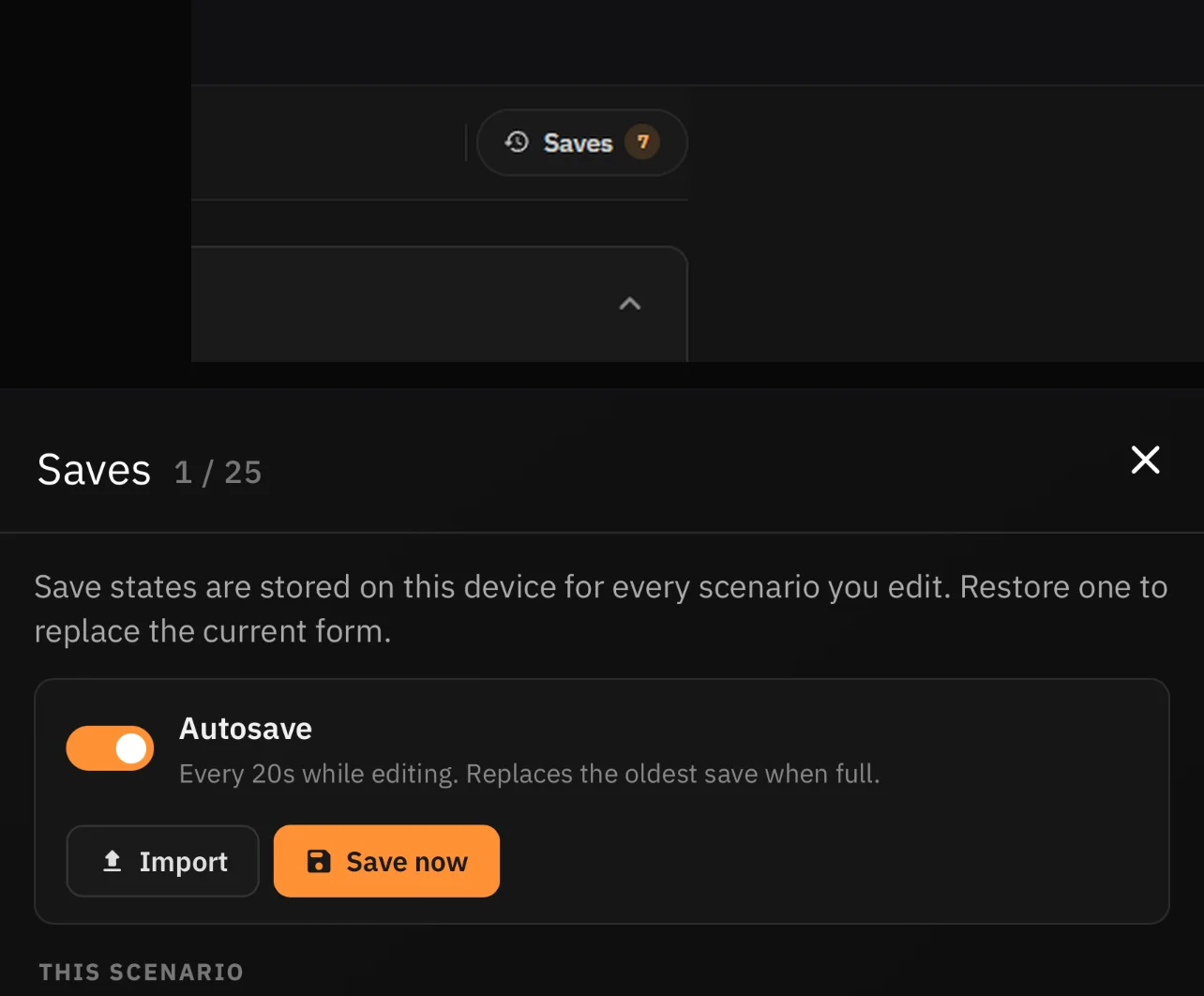
FictionLab's Saves button in the scenario editor, above the Saves panel with an Autosave switch and Import and Save now buttons.
FictionLab · edit mode · Saves · Save now

Convert it for AiRP

Other sites lay out characters and stories differently from AiRP, so convert your export before you import it. Use your own AI tool with our prompt, or use ours.

Your own AI tool

Copy our prompt into any AI tool and replace [STORY BRIEF] with the save file's text, or attach the file. It returns JSON for you to import.

Get the prompt
Ours: Convert with AI

Paste the save file's text into Convert with AI on the Import page. It uses the same prompt, takes up to 40,000 characters, and may cost credits.

Open Convert with AI

Import it

With your own tool, paste the JSON it returns into the box under Choose a file on the Import page. With ours, it lands there for you. Read the preview, then choose Import or Open in the editor. The story is saved as a private draft, so add a cover, an Intro, tags, and content labels before you publish.

Tips for FictionLab saves

Best practices
  • FictionLab's story cards work like AiRP's tidbits. Check that they came across, and that each character is a separate cast member.
  • If the save is hard to work with, copy the title, description, AI instructions, openings, and story cards with their keywords into one document and use that instead.
  • Only bring across scenarios you wrote.

Keep reading

Import and export guide

Importing a story

Import a story from another site or an AI tool, then review it as a private draft.

Help

All help guides

Every guide to playing, creating, and importing stories.